Why Setup a Password Manager
Generate, consolidate, and autofill strong and secure passwords for all your accounts
Password managers give you power to create and manage unique passwords and passkeys, so you can strengthen privacy and boost productivity online from any device or location.
Securely share encrypted information directly with anyone
Password managers allow us to securly share credentials accross the organization and allows all users to transmit data directly to others, while maintaining end-to-end encrypted security and limiting exposure.
Protect more than your passwords
Store all types of sensitive data, transmit it securely to anyone, access vault health reports—and much more.
Setting up your account for the first time
Create Account Email
Once an admin creates an account for you you'll recieve an email to join the organization click
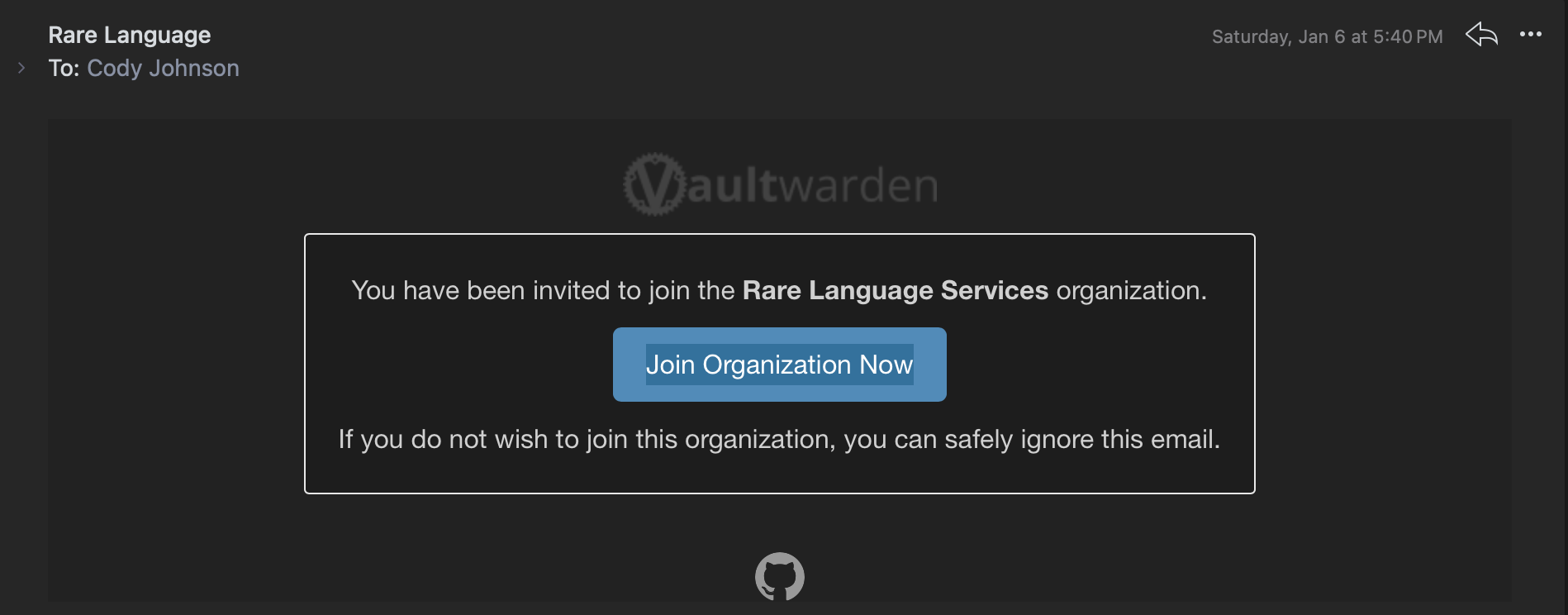
Create Account
You'll then be redirected to the browser to confirm and setup your account click
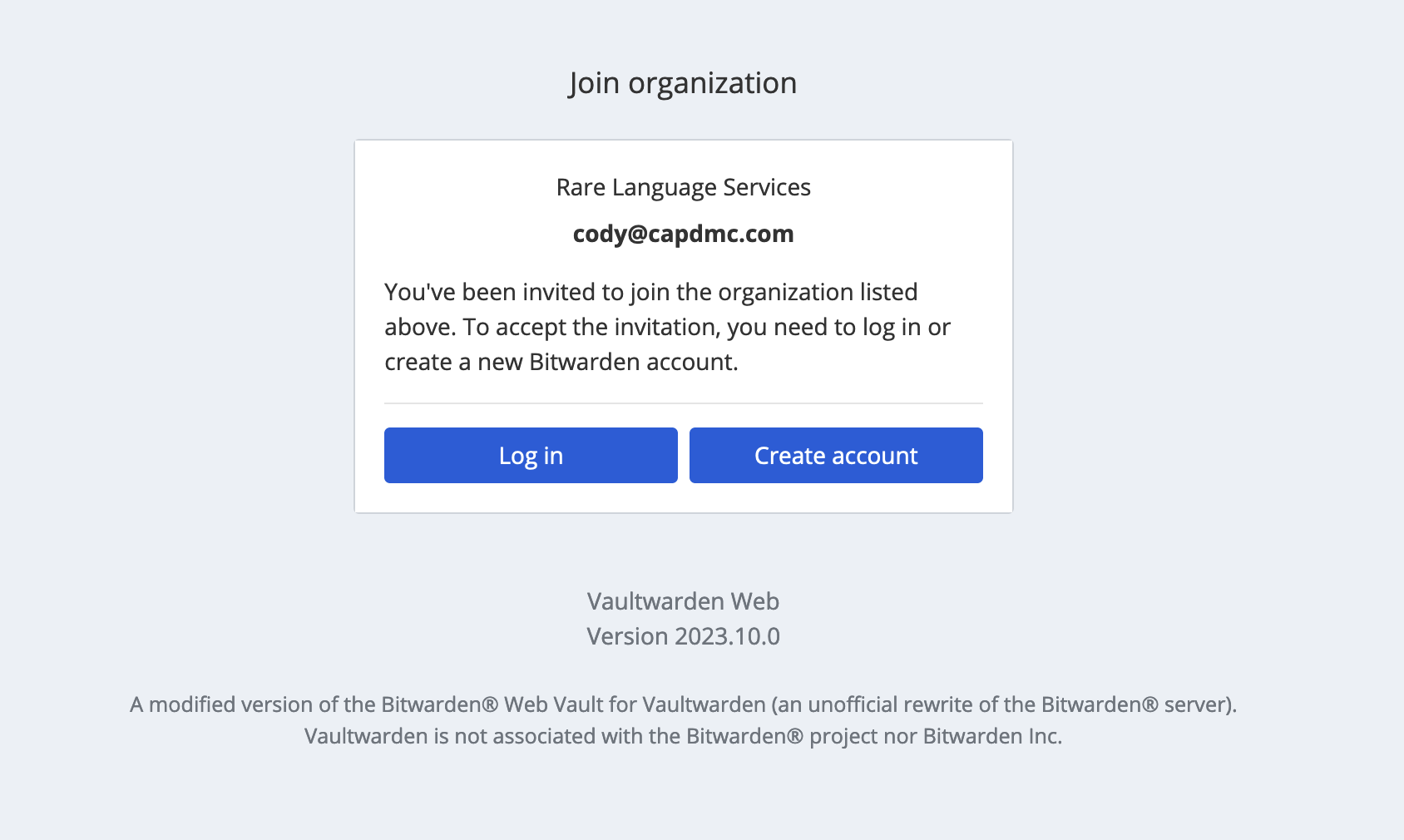
Setup Your Account
After clicking Create Account you will be redirected to setup an account. Fill out the fields in the form making sure to use the same email you recieved the invite at.
Picking a Master Password - You'll need to pick a master password that will be used to secure all your other passwords. Choose a password that is secure and that you don't use
on other sites. But also make sure it's one you will remember you're master password cannot be recovered if you forget it and it is used to encrypt all of your other passwords
Account Approval
Once you have created your account it will need to be approved by an admin Sorry we also don't like this process your admin will recieve a notification to approve your account. Once your account is approved you will recieve an email to notify you. You can now access the organizations passwords at passwords.rarelanguage.com.
You can create your own passwords before your account is confirmed but you wont be able access organization level passwords
Follow along with the sections below to setup up the password manager on different devices for easier access
Downloading the client on your devices
Download the App from the App Store Get Bitwarden Once downloaded open the app and login Login to Bitwarden Instance
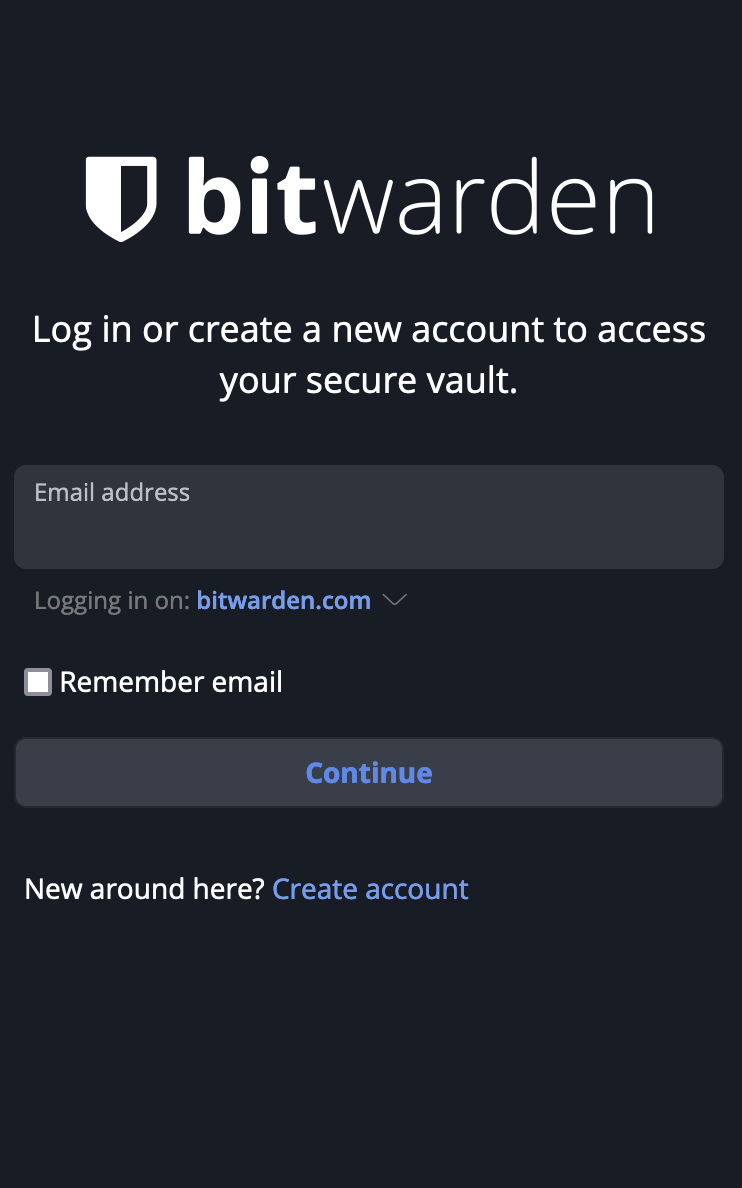
Enter your email address and then click on
self hosted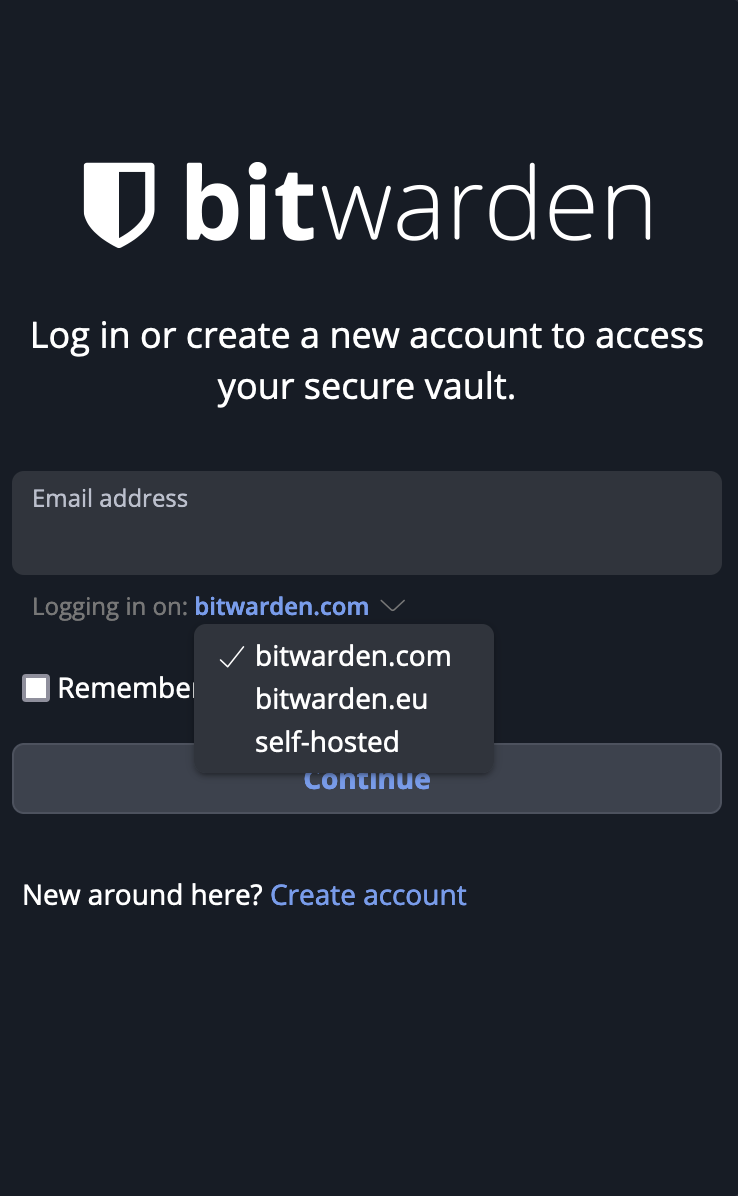
You'll then be taken to a page to input server information you simple need to put https://passwords.rarelanguage.com under Server URL at the top and hit save.
Once you hit save you can finish logging in with the email and master password you setup earlier
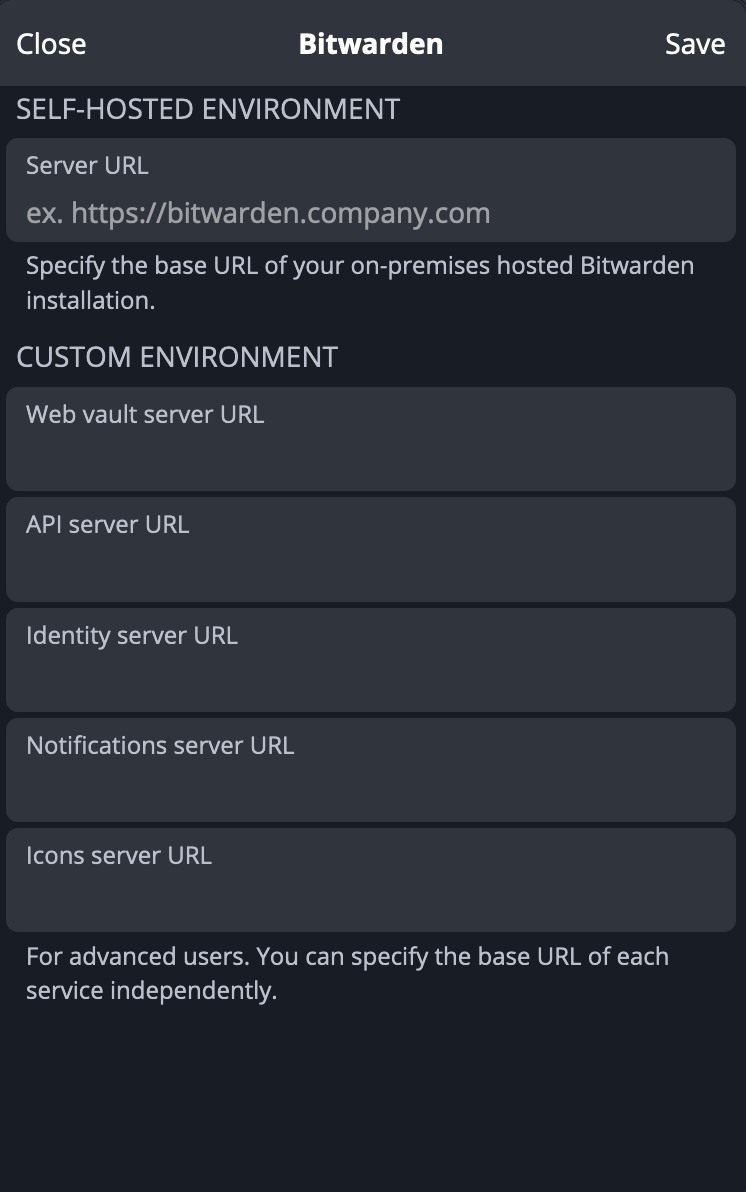
Select Organization
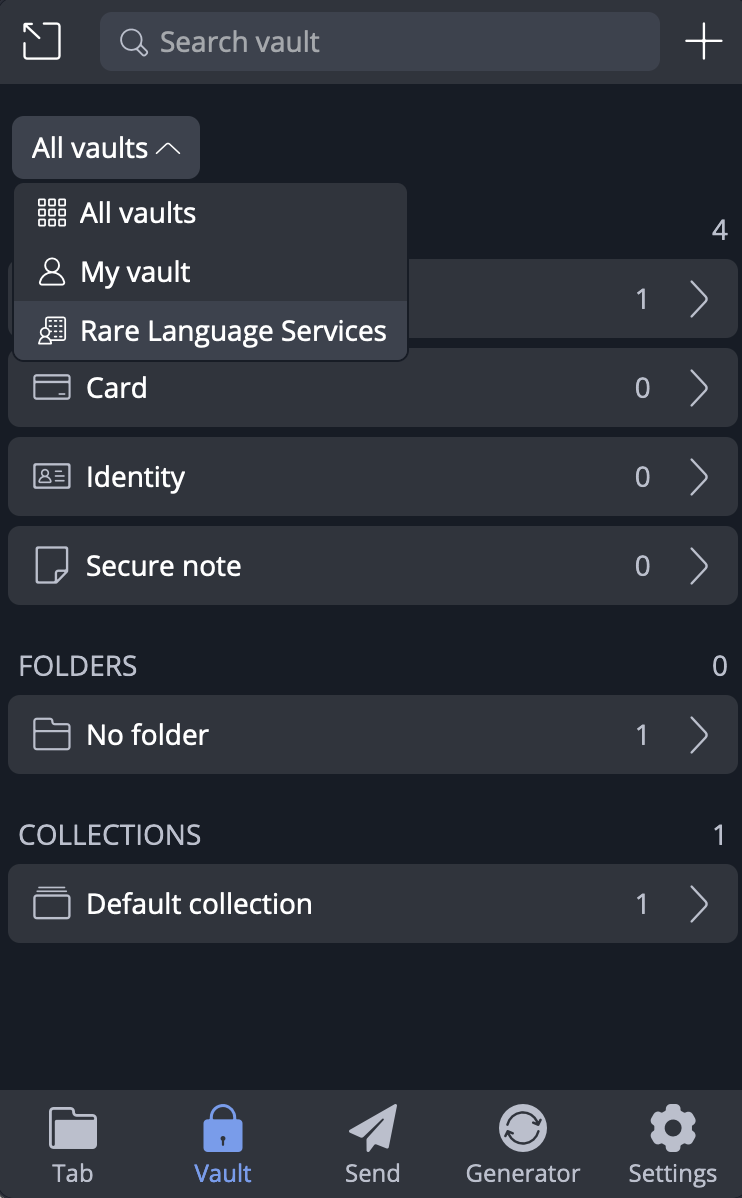
After you are logged in select the drop down labeled All Vaults and select Rare Language Services to access organization specific credentials